
How to Humanize Text Inside Claude and ChatGPT (Step-by-Step)

humanize text inside Claude and ChatGPT
Select. Copy. New tab. Paste. Wait. Copy again. Back to the chat. Paste. If you draft with AI and then clean it up in a separate humanizer, you know that relay by heart, and you probably run it a dozen times on a busy day.
You’re not alone in the chat window, either. In February 2026, OpenAI reported that ChatGPT’s global weekly user base had exceeded 900 million active users. A lot of those people are writing emails, posts and reports, then shuttling text between tabs to make it sound less like a machine wrote it.
There’s a cleaner way now. A single integration lets you refine written content using Claude or ChatGPT and receive the revised version directly within the same chat. Here’s exactly how to set it up, what to type once it’s running, and what to check before you hand any tool access to your chats.
Why the Copy-Paste Relay Can Finally Go
The fix comes from the Model Context Protocol, or MCP. It provides a shared technical framework that enables AI assistants to connect with external services and execute tasks through integrated tools. Anthropic introduced it in late 2024, and adoption moved fast. When Anthropic handed MCP to the Linux Foundation’s new Agentic AI Foundation in December 2025, it reported more than 10,000 active public MCP servers and 97 million+ monthly SDK downloads, with support already built into ChatGPT, Gemini, Microsoft Copilot and Visual Studio Code (Anthropic, 2025).
Phrasly runs one of those servers. Connect it, and you can humanize text inside Claude and ChatGPT by simply asking. The server gives your assistant three tools:
- humanize_text rewrites AI-sounding text with the same engine as the Phrasly website. Paid plans and trials run Phrasly Ultra.
- detect_ai_text scores a draft and reports the verdict, the AI percentage and how many sentences were flagged.
- get_account_status tells you your plan, your remaining words and today’s usage.
You never type those names. You ask in plain English, and the assistant picks the right tool.
What You Need Before You Start
Check three things first. It saves a confusing error later.
- A Phrasly account. Free accounts can connect. A free account currently includes 300 humanizer words, one time, so it’s enough for a proper test.
- A plan that allows custom connectors. On Claude, that’s Pro or Max for individuals. For Team and Enterprise subscriptions, the workspace administrator configures the connector centrally, while each user accesses it through their individual Phrasly login. In ChatGPT, enabling the integration requires Developer Mode, supported by Plus, Pro, Team, and Enterprise plans.
- The server URL. It’s the same everywhere: https://phrasly.ai/api/mcp
Step-by-Step: Connect Phrasly to Claude
Claude.ai and Claude Desktop
- Open Settings, then Connectors.
- Click Add custom connector.
- Name it Phrasly and paste https://phrasly.ai/api/mcp as the URL.
- Click Connect. A Phrasly page opens in your browser.
- Sign in, review the permissions on the approval screen, and choose Allow.
Keep both the OAuth Client ID and Client Secret fields empty. Phrasly handles client registration automatically, allowing Claude to generate the required credentials during the initial connection. There’s no need to configure these manually, so this part is much simpler than it might seem.
Claude Code
Run one command in your project:
claude mcp add –transport http phrasly https://phrasly.ai/api/mcp
Enter /mcp in the command interface, select Phrasly from the available options, and click Authenticate to launch the browser-based approval process. Claude Code is accessible through any subscription tier that supports the feature.
Step-by-Step: Connect Phrasly to ChatGPT
- Open Settings, then Apps & Connectors, and switch on Developer mode under Advanced.
- Click Create to add a custom connector.
- Name it Phrasly and paste https://phrasly.ai/api/mcp
- Select OAuth authentication, then keep both the Client ID and Client Secret fields blank.
- Set up the connection and complete the sign-in process through Phrasly’s authorisation page.
If ChatGPT throws a registration error, the usual culprit is a plan without developer mode. Other MCP-compatible applications that support remote server connections and OAuth authentication can use the identical URL to establish a connection.
| App | Where you add it | Plan needed | Auth step |
| Claude.ai / Desktop | Settings, Connectors | Pro, Max, Team, Enterprise | Connect, then Allow |
| Claude Code | One terminal command | Any plan with Claude Code | /mcp, then Authenticate |
| ChatGPT | Settings, Apps & Connectors (Developer mode) | Plus, Pro, Team, Enterprise | OAuth, blank Client ID |
How to Humanize Text Once You’re Connected
This is the fun part, because it’s mostly just talking.
Prompts That Actually Work
Paste or write your draft, then try lines like these:
- “Humanize this so it doesn’t read as AI.”
- “Rewrite the introduction you just created using Phrasly to make it sound completely original and natural..”
- “Check whether this paragraph reads as AI-written.”
- “How many Phrasly words do I have left?”
Apps that support MCP prompts also get three ready-made commands: humanize, humanize and verify, and check for AI. Within Claude Code, these commands become available through the /mcp__phrasly prefix, with each command automatically using the most recent draft from the active conversation as its default input.
Ask for a Before-and-After Score
Add “and verify” to your request. The report will show the initial AI score, the revised score, and the number of words billed. It’s a handy receipt when an editor or client wants proof, and you can always rerun a check yourself on the Phrasly AI Detector.
Work Through Long Drafts in Sections
Each request has a ceiling: 800 words on free and trial accounts, 5,000 on paid plans. For a long report, say “humanize this section by section and keep the headings intact.” There’s a floor too. Humanizing needs at least 30 words and detection needs at least 50, because scores on tiny snippets aren’t reliable.
Run It Again After You Edit
Here’s a small trap. If you ask the assistant to tweak the humanized version, its edits can bring the AI patterns right back. So after any rewrite, send the final text through Phrasly once more. Every result also lands in your Phrasly document history, so you can reopen it in the web editor later.
Check What You’re Connecting Before You Click Allow
A connector isn’t just a feature. It’s access. Not every MCP server is necessarily worthy of that level of trust.
When security firm Equixly tested popular MCP server implementations in March 2025, 43% had command injection flaws, 30% allowed unrestricted URL fetching and 22% let users read files outside their intended folders. Worse, 45% of the teams it notified called the risks “theoretical” or “acceptable.”
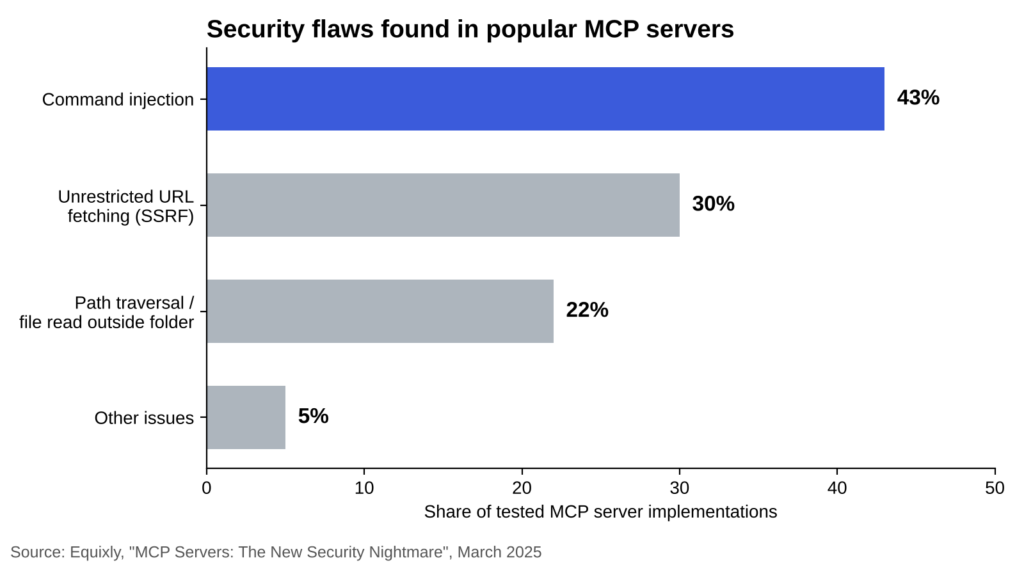
Share of tested MCP server implementations with each security flaw. Source: Equixly, March 2025.
So before you connect anything, look at the approval screen and ask a blunt question: does this tool need what it’s asking for? A humanizer has no reason to read your files or browse the web. Phrasly’s server is deliberately narrow. It can humanize, detect and report your balance, and that’s it. It can’t read your files, open links or run commands. You can also disconnect it any time from your Phrasly settings.
Phrasly’s guide to MCP security risks and the checks to run before you connect a server walks through red flags in more detail. It’s worth five minutes, whichever tools you end up using.
Fixing the Three Hiccups You’ll Probably Hit
“Please verify you’re human.” Phrasly runs occasional human checks to keep automated abuse off unlimited plans. The tool hands back a link. Open it, finish the short check yourself, and tell the assistant to try again.
“Out of words.” The connector follows the same plan rules as the website. Top up or upgrade, and the tools work again right away.
The tools vanished. Connections can expire after a long idle spell, or if you revoked access. Reconnect from your assistant’s connector settings and sign in again. That also refreshes the tool list.
One Conversation, From Draft to Done
The real win here isn’t speed, though you’ll save plenty of tab-hopping. It’s that drafting, humanizing and checking now happen in one place, with one account and one history, so you stop losing versions between windows.
A few honest caveats. No humanizer can promise how every detector will score your text, so read the result like an editor, not a rubber stamp. If you’re a student or writing for an employer, follow their rules on AI use and keep your drafts. And treat every new connector the way you’d treat a new app on your phone: check who made it and what it wants.
Set it up once, ask in plain English, verify when it matters, and keep your judgment switched on. That’s the whole workflow.