
Connectivity Issues HSSGamepad: What Causes Connection Problems and How to Fix Them
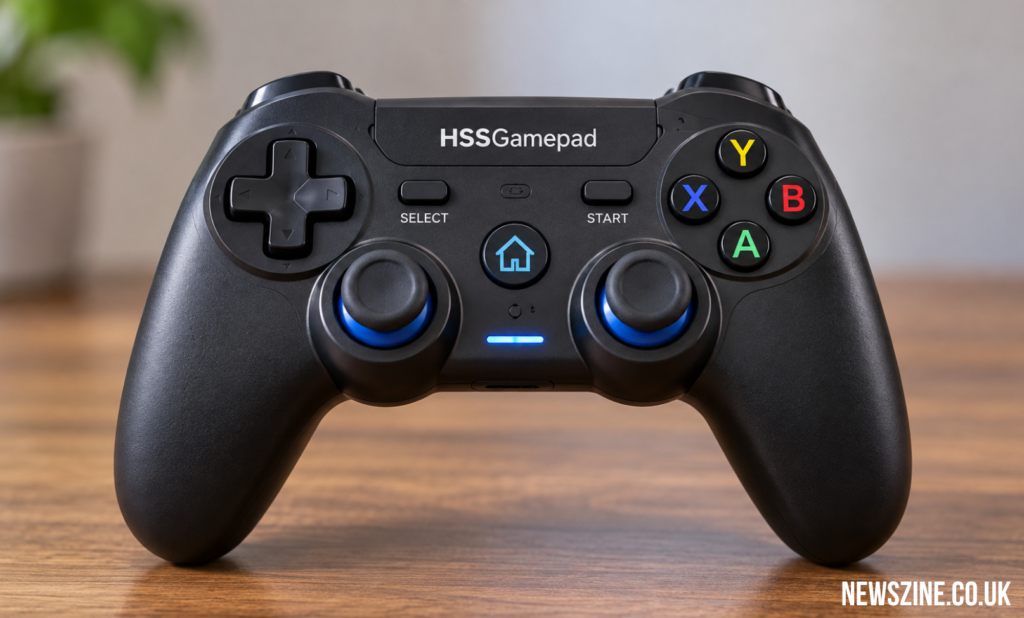
Connectivity Issues HSSGamepad
Connectivity issues HSSGamepad can make a controller difficult to use even when there is no obvious sign of what has gone wrong. In some cases, the gamepad does not appear during Bluetooth setup. In others, pairing finishes normally, but pressing the buttons produces no response inside a game. Users may also experience sudden disconnections, delayed input, or USB connections that provide power without allowing the controller to work.
Each of these symptoms can point to a different underlying cause. The fault may exist between the gamepad and the device, between the operating system and the controller, or between the operating system and a particular game. Identifying which stage fails is the most useful starting point because it prevents unnecessary changes to settings that are already working.
Start With the Basic Controller Checks
Before looking through Windows menus or changing game settings, make sure HSSGamepad has enough battery power. Charge the controller properly, switch it off, and restart the computer or mobile device. Once both devices are ready again, connect the controller using the pairing procedure intended for its model.
This basic test establishes a clean starting point. If the controller was previously paired, remove the saved Bluetooth connection before setting it up again. Creating a new pairing can be more useful than repeatedly attempting to reconnect through an old saved connection.
What to Do When Bluetooth Pairing Fails
When HSSGamepad does not pair, first determine whether the computer or phone can actually see it. A controller that never appears in the Bluetooth device list presents a different problem from one that appears but fails during connection. Confirm Bluetooth is active and place the controller into its correct pairing state before scanning again.
If it still cannot be found, restart Bluetooth and repeat the test with the controller close to the receiving device. Another useful check is trying the gamepad with a different compatible device. If another phone or computer discovers it, the original device’s Bluetooth setup becomes the more likely area to investigate.
Why a Connected Controller May Still Not Work
A successful Bluetooth connection does not necessarily mean HSSGamepad is ready for gameplay. The computer may establish wireless communication with the controller while the game fails to accept its commands. This can create a situation where everything appears normal in Bluetooth settings but nothing happens during play.
The best way to separate these problems is to test controller input before concentrating on the game. If Windows recognizes button presses and stick movements, the Bluetooth link is doing at least part of its job. Trying another controller-compatible game can provide further confirmation. When the gamepad works elsewhere, the original game’s controller configuration should be examined instead of pairing the device repeatedly.
Game Support Can Affect Controller Response
Games can have different requirements for external controllers. A gamepad that functions correctly in one title may need a different configuration in another. This is why a controller should not immediately be considered faulty simply because one game does not react to it.
On a Windows PC, check whether the affected title supports the controller setup being used. If the game runs through Steam, its input configuration may also influence controller behavior. Testing relevant Steam Input options and the game’s own control settings can help determine whether the problem exists at the software level.
Dealing With Random Disconnects
A controller that disconnects after working for a while needs a different approach from one that cannot connect at all. Since the initial pairing succeeds, begin by checking factors that could affect connection stability. Battery level is an important first check, followed by the distance between HSSGamepad and the Bluetooth receiver.
Wireless interference should also be considered. Test the controller closer to the receiving device and reduce unnecessary nearby Bluetooth activity while troubleshooting. Windows users can additionally examine Bluetooth drivers and power-saving settings if the connection repeatedly disappears during use.
Checking HSSGamepad Through USB
A wired test can reveal useful information about the condition of the controller. Connect HSSGamepad to the PC using a USB cable capable of transferring data. Do not judge the connection only by whether the controller begins charging, because power delivery and data communication are separate functions.
If the gamepad works correctly over USB but not through Bluetooth, the results point more strongly toward the wireless side of the setup. If USB detection also fails, test another data cable and another computer port. Comparing the results helps narrow the problem without changing unrelated software settings.
Finding the Cause of Input Lag
Input lag can occur even when HSSGamepad remains connected. The player may press a button or move a stick and notice that the action reaches the game later than expected. In this situation, check the wireless connection rather than assuming that pairing has completely failed.
Move closer to the Bluetooth receiver and test again. Then connect the controller through USB and compare its response. If wired control feels normal while Bluetooth remains delayed, the wireless connection deserves more attention. If the delay occurs with both connection methods, testing another game can help determine whether the problem is related to the software rather than Bluetooth.
HSSGamepad Connection on Android
On Android, begin by removing an unreliable saved Bluetooth connection and pairing the controller again. After it connects, test it with a game that accepts controller input. This makes it possible to distinguish a Bluetooth problem from a game-support problem.
If HSSGamepad works with one supported game but does nothing in another, repeatedly resetting Bluetooth is unlikely to solve the issue. The second game’s controller compatibility and input settings become more relevant because the controller has already demonstrated that it can communicate with the phone.
HSSGamepad Connection on iPhone
The same basic troubleshooting method can be used with an iPhone. Start with a fresh Bluetooth connection and make sure the gamepad remains connected before opening a game. If the connection is unstable, remove the controller from the saved Bluetooth devices and pair it again.
Once pairing works, check controller operation in compatible software. A Bluetooth connection by itself does not guarantee that every game will respond to an external controller. Testing more than one game helps identify whether the problem follows HSSGamepad or appears only with particular software.
Windows Drivers and Power Management
If HSSGamepad repeatedly loses its connection on a Windows computer, the PC’s Bluetooth setup may need attention. Check Windows updates and the Bluetooth hardware in Device Manager. Driver problems can interfere with communication even when the controller itself is operating normally.
Power-saving behavior is another area to consider when disconnects happen repeatedly. Windows may manage connected hardware to reduce power use, so relevant Bluetooth or device power settings can be checked when the symptoms support that possibility. Make one change at a time and test again so it remains clear which adjustment affected the problem.
Be Careful With Firmware Updates
Firmware should not be the first solution attempted for an HSSGamepad connection problem. Pairing, battery condition, USB testing, game compatibility, and Windows settings provide safer areas to investigate first.
If firmware eventually needs attention, it should be verified for the exact controller model. Installing software intended for a different version of the gamepad can create new problems. The same caution applies to unknown driver packages or utilities claiming to provide an instant controller fix.
How to Know if HSSGamepad Has a Hardware Problem
One computer failing to recognize a controller does not prove that the gamepad is damaged. Test HSSGamepad on another compatible device before reaching that conclusion. If it operates normally there, troubleshooting should return to the original computer, phone, or software configuration.
A hardware problem becomes more believable when the same failure appears across several devices and connection methods. For example, if Bluetooth remains unreliable on different systems and USB also fails with working data cables, the controller itself deserves closer examination.
Best Order for Troubleshooting
The simplest approach is to begin with the controller and gradually move toward software. Charge HSSGamepad, restart the devices, and create a fresh pairing. Next, check whether the operating system recognizes controller input. After that, test the game and its controller configuration.
If the cause remains unclear, switch from Bluetooth to a known-good USB data cable and then try another compatible computer or mobile device. These comparisons can show whether the problem stays with Bluetooth, one particular game, one system, or the controller.
Conclusion
Connectivity issues HSSGamepad can involve Bluetooth pairing, repeated disconnections, missing game input, USB detection, or delayed controls. Because these symptoms can originate from different parts of the setup, changing random settings is rarely the best troubleshooting method.
Start with power and pairing, confirm that the device recognizes the controller, and then check game compatibility. Use a USB data connection and another compatible device when additional testing is needed. Working through the connection in this order makes it easier to locate the actual problem and avoid unnecessary changes.